> ## Documentation Index
> Fetch the complete documentation index at: https://docs.ederspark.com/llms.txt
> Use this file to discover all available pages before exploring further.
# Sign up and authentication
> Create your Freiya account using email or Google OAuth, verify your email, and get started with your research platform
Creating a Freiya account is quick and secure. Choose between email registration or Google OAuth for instant access to your research workspace.
## Sign up options
Freiya offers two registration methods to suit your preference:
Sign up with your email address and create a password
Sign up instantly using your existing Google account
## Email registration
Create an account using your email address with our secure registration process.
### Registration steps
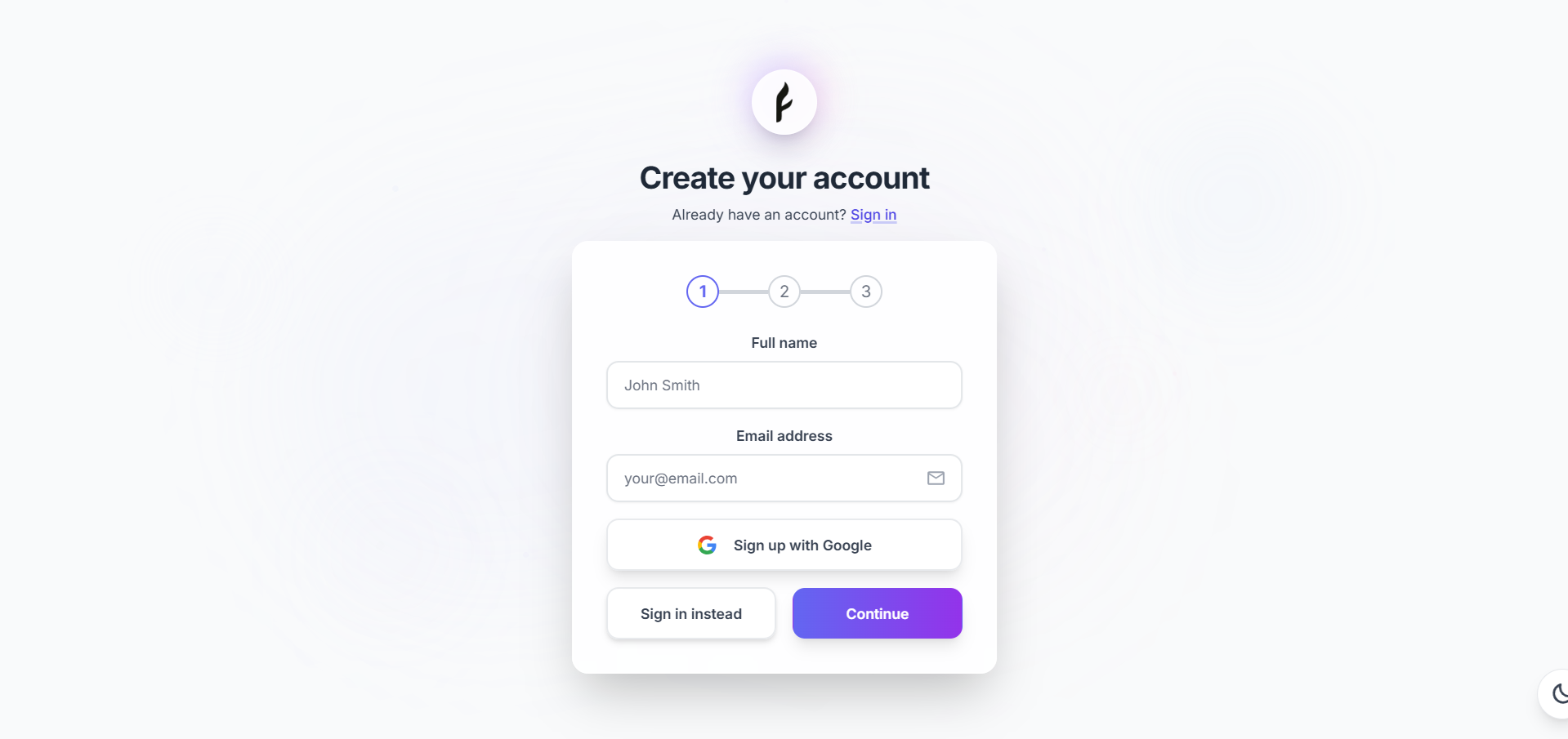
Navigate to [freiya.ederspark.com/auth/signup](https://freiya.ederspark.com/auth/signup)
Fill in the registration form:
* **Full name** - Your display name
* **Email address** - Must be valid for verification
* **Password** - Secure password meeting requirements
Click **Sign Up** to create your account
Look for verification email from Freiya
Open the email and copy the 5-digit code
Enter the code on the verification page
Your account is activated, begin exploring!
 ### Password requirements
Your password must meet these security standards:
* Minimum 8 characters
* At least one uppercase letter (recommended)
* At least one number (recommended)
* At least one special character (recommended)
Use a strong, unique password. Consider using a password manager like 1Password, LastPass, or Bitwarden.
### Email verification
After registering, you'll receive a verification email:
**Email contents:**
* 5-digit verification code
* Link to verification page
* Code expiration time (1 hour)
**If you don't receive the email:**
* Check spam/junk folder
* Verify email address was entered correctly
* Wait a few minutes (delivery can be delayed)
* Request a new code on the verification page
Verification codes expire after 1 hour. Request a new code if yours expires.
### Completing verification
Click the link in the email or navigate manually
Type the 5-digit code from your email
Click **Verify Email**
Account verified! You'll be redirected to the app
## Google OAuth registration
Sign up instantly using your Google account, no password needed, no email verification required.
### OAuth steps
Go to [freiya.ederspark.com/auth/signup](https://freiya.ederspark.com/auth/signup)
Find and click the **Continue with Google** button
Choose the Google account you want to use
Review and accept the permissions Freiya requests
You're instantly logged in and redirected to the app
### Benefits of Google OAuth
* **Faster signup** - No forms to fill, instant account creation
* **No password** - One less password to remember
* **Auto-verification** - Email pre-verified by Google
* **Secure** - Google's enterprise-grade security
* **Easy login** - Quick sign-in on future visits
Your Google account email becomes your Freiya account email. Your password stays with Google, Freiya never sees it.
### Permissions requested
When you sign up with Google, Freiya requests:
| Permission | Why we need it |
| ---------------------- | ----------------------------------- |
| **Email address** | To create and identify your account |
| **Basic profile info** | Your name for display in the app |
| **Profile picture** | Optional, for your account avatar |
Freiya never posts to your Google account or accesses other Google services without permission.
## Signing in
After creating your account, sign in to access Freiya.
### Sign in with email
Go to [freiya.ederspark.com/auth/signin](https://freiya.ederspark.com/auth/signin)
Input your email and password
Submit the form
You're logged in and redirected to your workspace
### Password requirements
Your password must meet these security standards:
* Minimum 8 characters
* At least one uppercase letter (recommended)
* At least one number (recommended)
* At least one special character (recommended)
Use a strong, unique password. Consider using a password manager like 1Password, LastPass, or Bitwarden.
### Email verification
After registering, you'll receive a verification email:
**Email contents:**
* 5-digit verification code
* Link to verification page
* Code expiration time (1 hour)
**If you don't receive the email:**
* Check spam/junk folder
* Verify email address was entered correctly
* Wait a few minutes (delivery can be delayed)
* Request a new code on the verification page
Verification codes expire after 1 hour. Request a new code if yours expires.
### Completing verification
Click the link in the email or navigate manually
Type the 5-digit code from your email
Click **Verify Email**
Account verified! You'll be redirected to the app
## Google OAuth registration
Sign up instantly using your Google account, no password needed, no email verification required.
### OAuth steps
Go to [freiya.ederspark.com/auth/signup](https://freiya.ederspark.com/auth/signup)
Find and click the **Continue with Google** button
Choose the Google account you want to use
Review and accept the permissions Freiya requests
You're instantly logged in and redirected to the app
### Benefits of Google OAuth
* **Faster signup** - No forms to fill, instant account creation
* **No password** - One less password to remember
* **Auto-verification** - Email pre-verified by Google
* **Secure** - Google's enterprise-grade security
* **Easy login** - Quick sign-in on future visits
Your Google account email becomes your Freiya account email. Your password stays with Google, Freiya never sees it.
### Permissions requested
When you sign up with Google, Freiya requests:
| Permission | Why we need it |
| ---------------------- | ----------------------------------- |
| **Email address** | To create and identify your account |
| **Basic profile info** | Your name for display in the app |
| **Profile picture** | Optional, for your account avatar |
Freiya never posts to your Google account or accesses other Google services without permission.
## Signing in
After creating your account, sign in to access Freiya.
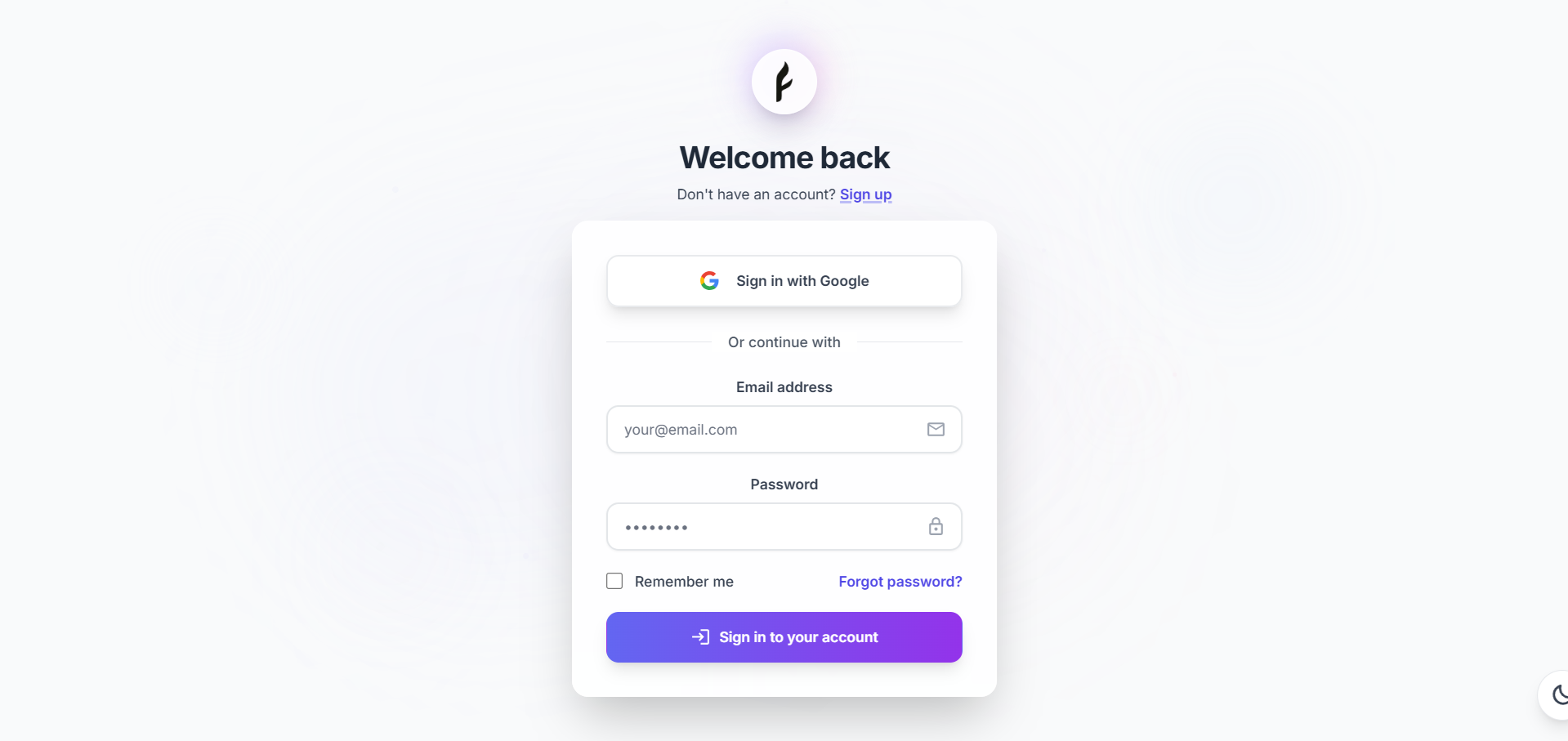
### Sign in with email
Go to [freiya.ederspark.com/auth/signin](https://freiya.ederspark.com/auth/signin)
Input your email and password
Submit the form
You're logged in and redirected to your workspace
 ### Sign in with Google
Go to [freiya.ederspark.com/auth/signin](https://freiya.ederspark.com/auth/signin)
Use the Google OAuth button
Choose your Google account
Automatically signed in
### Remember me
Check **Remember Me** to stay signed in:
* Session persists for 30 days
* Secure token stored locally
* Auto-login on return visits
* Can be disabled in Settings
Only use "Remember Me" on your personal devices, not shared or public computers.
## Account security
### Secure your account
**Best practices:**
* Use a strong, unique password
* Enable two-factor authentication (coming soon)
* Don't share your password
* Log out on shared devices
* Review active sessions regularly
### Password reset
Forgot your password? Reset it easily:
On the sign-in page, click **Forgot Password?**
Provide the email associated with your account
Look for password reset email
Link is valid for 1 hour
Enter and confirm your new password
Use your new password to log in
### Sign in with Google
Go to [freiya.ederspark.com/auth/signin](https://freiya.ederspark.com/auth/signin)
Use the Google OAuth button
Choose your Google account
Automatically signed in
### Remember me
Check **Remember Me** to stay signed in:
* Session persists for 30 days
* Secure token stored locally
* Auto-login on return visits
* Can be disabled in Settings
Only use "Remember Me" on your personal devices, not shared or public computers.
## Account security
### Secure your account
**Best practices:**
* Use a strong, unique password
* Enable two-factor authentication (coming soon)
* Don't share your password
* Log out on shared devices
* Review active sessions regularly
### Password reset
Forgot your password? Reset it easily:
On the sign-in page, click **Forgot Password?**
Provide the email associated with your account
Look for password reset email
Link is valid for 1 hour
Enter and confirm your new password
Use your new password to log in
 Password reset links expire after 1 hour for security. Request a new link if yours expires.
### Session management
Freiya uses JWT (JSON Web Tokens) for secure session management:
**Session features:**
* **Secure tokens** - Encrypted and signed
* **Auto-renewal** - Extends on activity
* **Expiration** - 24 hours of inactivity
* **Multi-device** - Sign in on multiple devices
* **Logout** - Invalidates tokens
### Account deletion
Need to delete your account?
Navigate to **Settings → Account**
Scroll to the danger zone section
Click **Delete My Account**
Type your email to confirm
All data removed within 30 days
Account deletion is permanent! All papers, chats, annotations, and collections will be deleted. Export your data first if you want to keep it.
## Troubleshooting
Try these steps:
1. Check spam/junk folder
2. Verify email address spelling
3. Wait 5-10 minutes for delivery
4. Click "Resend verification email"
5. Try a different email address
6. Contact support if still not received
Codes expire after 1 hour for security:
1. Click "Resend verification code"
2. Check email for new code
3. Enter new code promptly
4. Complete verification within 1 hour
Possible issues:
1. Pop-ups blocked by browser (allow for freiya.ederspark.com)
2. Third-party cookies disabled (enable for Google OAuth)
3. Browser extensions blocking OAuth
4. Try incognito/private mode
5. Try a different browser
Check these items:
1. Spam/junk folder
2. Email address is correct
3. Wait a few minutes
4. Request another reset
5. Contact support if persistent
This means:
* Email is already registered
* Try signing in instead of signing up
* Use password reset if you forgot your password
* Contact support if you believe this is an error
## After signing up
Once your account is created and verified:
Get up and running in 5 minutes
Learn how to import papers to your library
Start a conversation with AI
Customize your preferences
## Privacy and data
**Your data is yours:**
* Encrypted in transit and at rest
* Never shared without permission
* GDPR compliant
* Can be exported anytime
* Deleted on request
**What we collect:**
* Email and name (for your account)
* Papers you add (stored securely)
* Chats and annotations (private to you)
* Usage analytics (anonymized)
Read our [Privacy Policy](https://freiya.ederspark.com/privacy) for complete details.
## Need help?
Having trouble signing up or signing in?
* 📧 Email: [support@ederspark.com](mailto:support@ederspark.com)
* 📚 Check our [troubleshooting guide](#troubleshooting)
* 💬 Contact support through the help widget
Welcome to Freiya! We're excited to help you streamline your research.
Password reset links expire after 1 hour for security. Request a new link if yours expires.
### Session management
Freiya uses JWT (JSON Web Tokens) for secure session management:
**Session features:**
* **Secure tokens** - Encrypted and signed
* **Auto-renewal** - Extends on activity
* **Expiration** - 24 hours of inactivity
* **Multi-device** - Sign in on multiple devices
* **Logout** - Invalidates tokens
### Account deletion
Need to delete your account?
Navigate to **Settings → Account**
Scroll to the danger zone section
Click **Delete My Account**
Type your email to confirm
All data removed within 30 days
Account deletion is permanent! All papers, chats, annotations, and collections will be deleted. Export your data first if you want to keep it.
## Troubleshooting
Try these steps:
1. Check spam/junk folder
2. Verify email address spelling
3. Wait 5-10 minutes for delivery
4. Click "Resend verification email"
5. Try a different email address
6. Contact support if still not received
Codes expire after 1 hour for security:
1. Click "Resend verification code"
2. Check email for new code
3. Enter new code promptly
4. Complete verification within 1 hour
Possible issues:
1. Pop-ups blocked by browser (allow for freiya.ederspark.com)
2. Third-party cookies disabled (enable for Google OAuth)
3. Browser extensions blocking OAuth
4. Try incognito/private mode
5. Try a different browser
Check these items:
1. Spam/junk folder
2. Email address is correct
3. Wait a few minutes
4. Request another reset
5. Contact support if persistent
This means:
* Email is already registered
* Try signing in instead of signing up
* Use password reset if you forgot your password
* Contact support if you believe this is an error
## After signing up
Once your account is created and verified:
Get up and running in 5 minutes
Learn how to import papers to your library
Start a conversation with AI
Customize your preferences
## Privacy and data
**Your data is yours:**
* Encrypted in transit and at rest
* Never shared without permission
* GDPR compliant
* Can be exported anytime
* Deleted on request
**What we collect:**
* Email and name (for your account)
* Papers you add (stored securely)
* Chats and annotations (private to you)
* Usage analytics (anonymized)
Read our [Privacy Policy](https://freiya.ederspark.com/privacy) for complete details.
## Need help?
Having trouble signing up or signing in?
* 📧 Email: [support@ederspark.com](mailto:support@ederspark.com)
* 📚 Check our [troubleshooting guide](#troubleshooting)
* 💬 Contact support through the help widget
Welcome to Freiya! We're excited to help you streamline your research.