> ## Documentation Index
> Fetch the complete documentation index at: https://docs.ederspark.com/llms.txt
> Use this file to discover all available pages before exploring further.
# Quick start guide
> Get up and running with Freiya in 5 minutes. Create your account, add your first paper, and start chatting with AI
This guide will help you start using Freiya in just a few minutes. By the end, you'll have your account set up, your first paper added, and you'll be ready to explore all of Freiya's features.
Already have an account? Skip to [adding your first paper](#add-your-first-paper).
## Create your account
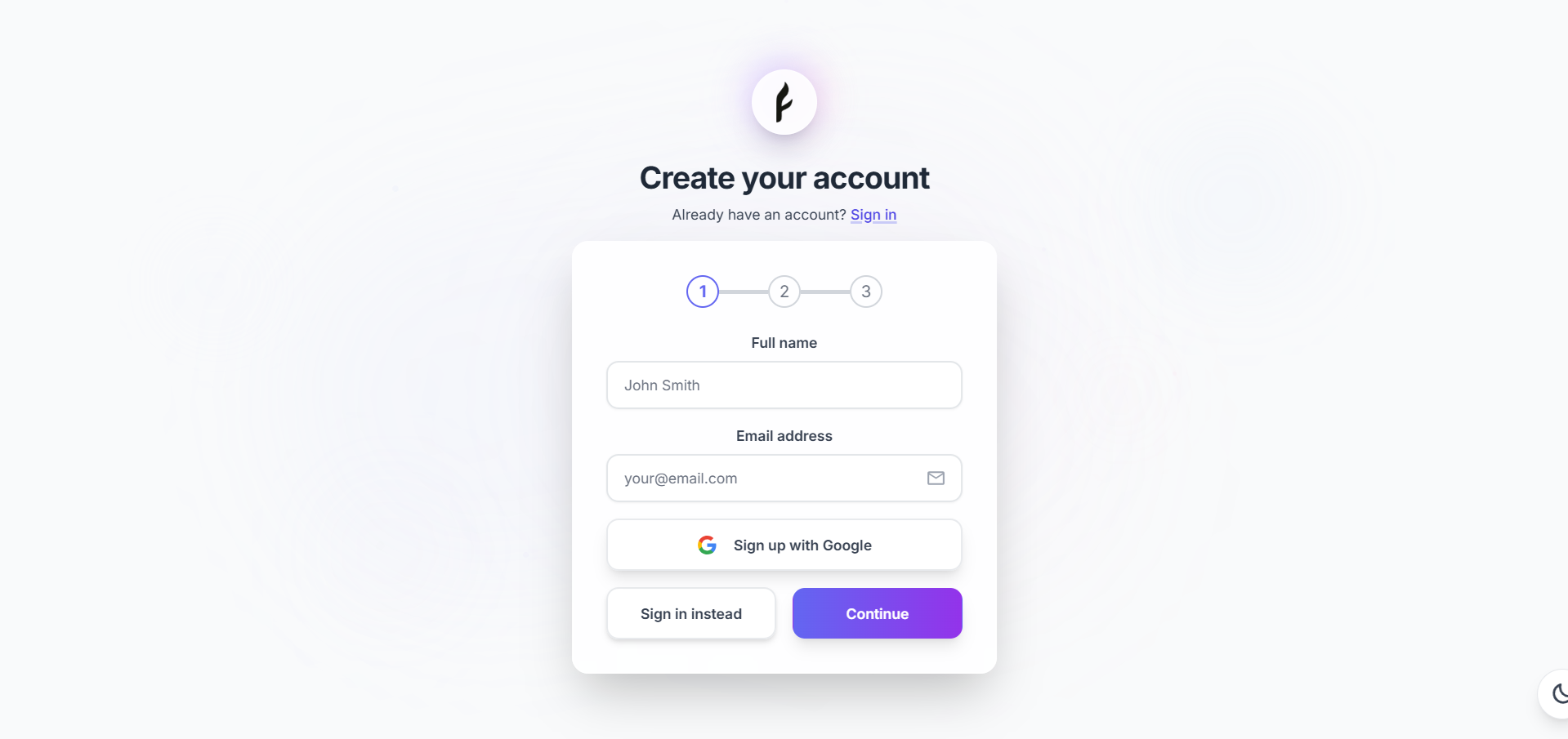
You can sign up for Freiya using email or Google OAuth, both are quick and secure.
1. Visit [freiya.ederspark.com/auth/signup](https://freiya.ederspark.com/auth/signup)
2. Enter your name, email, and password
3. Click **Sign Up**
4. Check your email for a verification code
5. Enter the 5-digit code to verify your account
 1. Visit [freiya.ederspark.com/auth/signup](https://freiya.ederspark.com/auth/signup)
2. Click **Continue with Google**
3. Select your Google account
4. Grant permissions to Freiya
5. You're in! No email verification needed
New accounts start on the Free tier with 5 papers and 2 collections. You can upgrade anytime.
## Take a tour
After signing in, you'll see the main Freiya interface:
1. Visit [freiya.ederspark.com/auth/signup](https://freiya.ederspark.com/auth/signup)
2. Click **Continue with Google**
3. Select your Google account
4. Grant permissions to Freiya
5. You're in! No email verification needed
New accounts start on the Free tier with 5 papers and 2 collections. You can upgrade anytime.
## Take a tour
After signing in, you'll see the main Freiya interface:
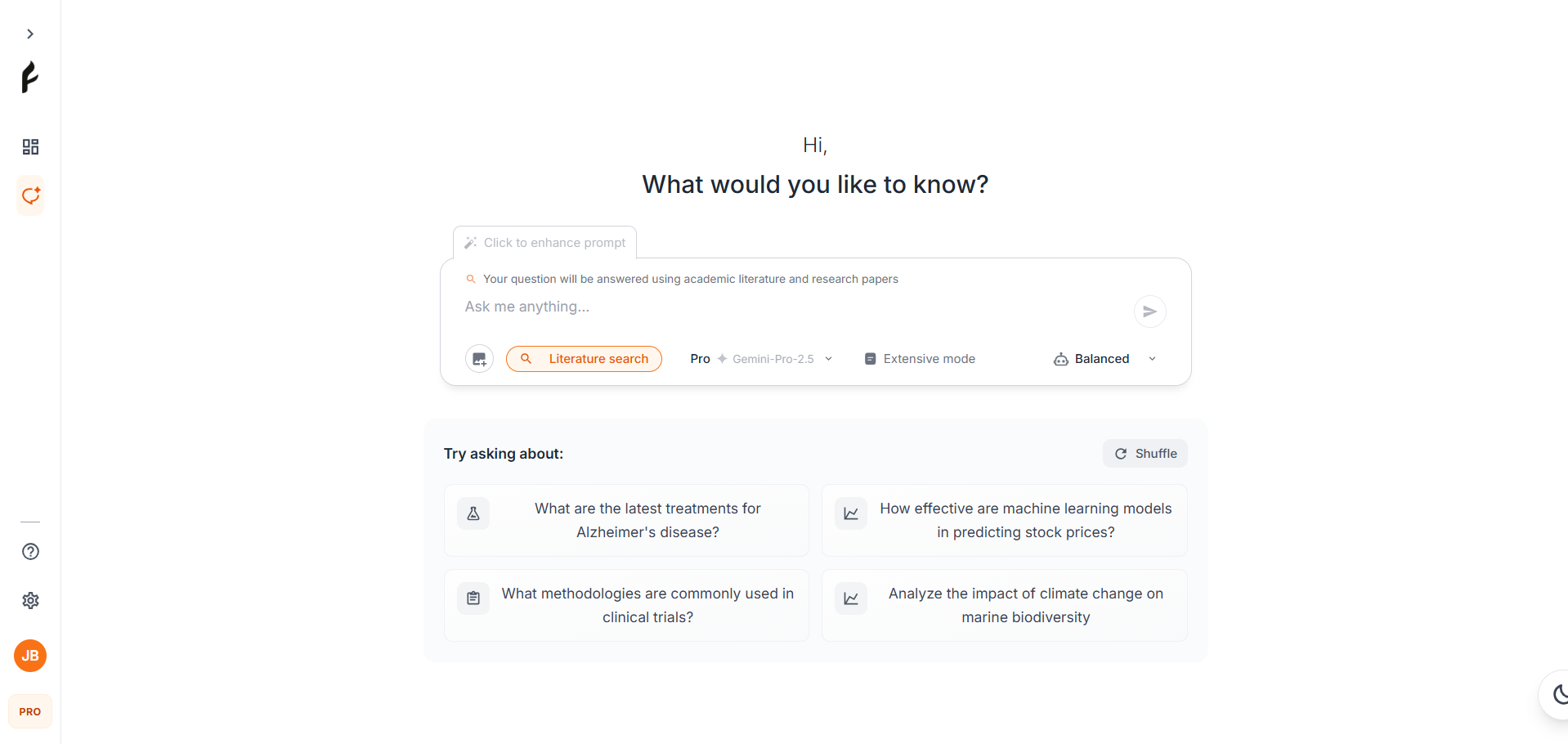 **Key interface elements:**
* **Sidebar** - Navigate between chats, papers, collections, and settings
* **Main area** - Your current view (chat, paper library, or PDF viewer)
* **Top bar** - Quick actions, search, and account menu
* **Chat input** - Start a conversation with AI (on chat page)
## Add your first paper
Let's add a research paper to your library. Freiya supports three methods:
The fastest way to add papers with complete metadata.
Find the **Add Paper** button in the top-right corner
Choose **Search by DOI** from the options
Paste the DOI (e.g., `10.1234/example.doi`)
Freiya automatically fetches title, authors, abstract, and more. Click **Save**
**Key interface elements:**
* **Sidebar** - Navigate between chats, papers, collections, and settings
* **Main area** - Your current view (chat, paper library, or PDF viewer)
* **Top bar** - Quick actions, search, and account menu
* **Chat input** - Start a conversation with AI (on chat page)
## Add your first paper
Let's add a research paper to your library. Freiya supports three methods:
The fastest way to add papers with complete metadata.
Find the **Add Paper** button in the top-right corner
Choose **Search by DOI** from the options
Paste the DOI (e.g., `10.1234/example.doi`)
Freiya automatically fetches title, authors, abstract, and more. Click **Save**
 Find DOIs on journal websites, Google Scholar, or at the bottom of PDF papers.
Add papers that don't have a DOI or when you want to customize metadata.
Open the Add Paper dialog
Choose **Manual Entry** tab
Enter title, authors, year, publication, and abstract
Click **Save** to add to your library
Upload a PDF and Freiya extracts metadata automatically.
Open the Add Paper dialog
Choose **Upload PDF** tab
Browse and select a PDF from your device
Verify the extracted metadata and click **Save**
PDF uploads are limited by file size based on your tier (10MB free, 50MB Pro).
## Start an AI chat
Now let's try Freiya's AI chat feature:
Click **Chat** in the sidebar or press `Ctrl/Cmd + N` for a new chat
Choose an AI model from the dropdown (Free tier users see basic models)
Type your question in the input box. Try asking about your paper!
**Example:** "Analyze the impact of remote work on employee productivity and well-being"
Watch as the AI streams its response in real-time
Find DOIs on journal websites, Google Scholar, or at the bottom of PDF papers.
Add papers that don't have a DOI or when you want to customize metadata.
Open the Add Paper dialog
Choose **Manual Entry** tab
Enter title, authors, year, publication, and abstract
Click **Save** to add to your library
Upload a PDF and Freiya extracts metadata automatically.
Open the Add Paper dialog
Choose **Upload PDF** tab
Browse and select a PDF from your device
Verify the extracted metadata and click **Save**
PDF uploads are limited by file size based on your tier (10MB free, 50MB Pro).
## Start an AI chat
Now let's try Freiya's AI chat feature:
Click **Chat** in the sidebar or press `Ctrl/Cmd + N` for a new chat
Choose an AI model from the dropdown (Free tier users see basic models)
Type your question in the input box. Try asking about your paper!
**Example:** "Analyze the impact of remote work on employee productivity and well-being"
Watch as the AI streams its response in real-time
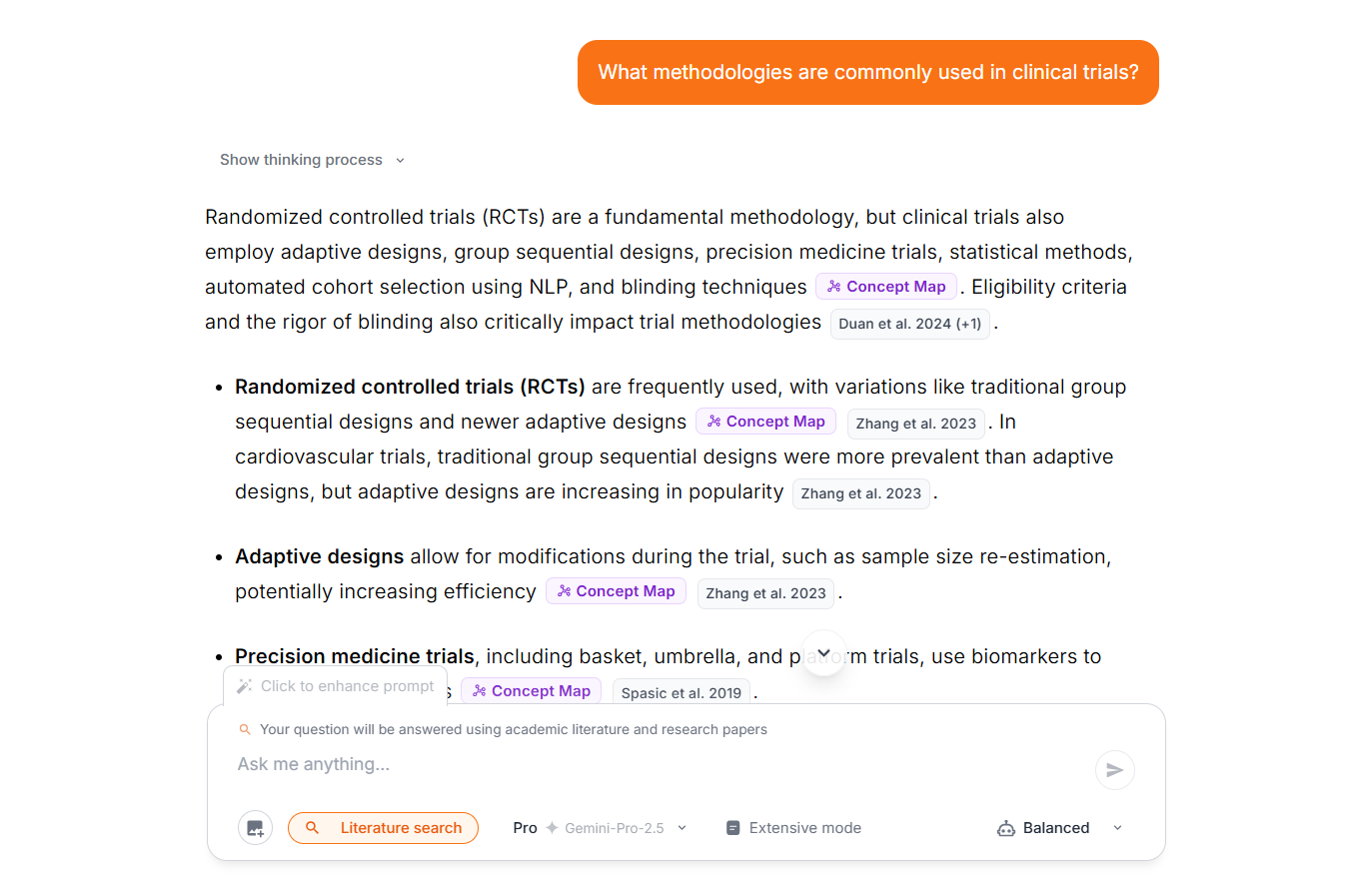 Your chats are automatically saved and titled. Find them in the sidebar under "Chats".
## Try the PDF viewer
If your paper has a PDF, you can read and annotate it in Focus mode:
Go to your paper library and click on a paper
Click the **View PDF** or **Focus** button
Select any text to see the highlighting toolbar
Pick a highlight color (yellow, green, blue, red, purple, orange)
Optionally add a comment to your highlight
Your chats are automatically saved and titled. Find them in the sidebar under "Chats".
## Try the PDF viewer
If your paper has a PDF, you can read and annotate it in Focus mode:
Go to your paper library and click on a paper
Click the **View PDF** or **Focus** button
Select any text to see the highlighting toolbar
Pick a highlight color (yellow, green, blue, red, purple, orange)
Optionally add a comment to your highlight
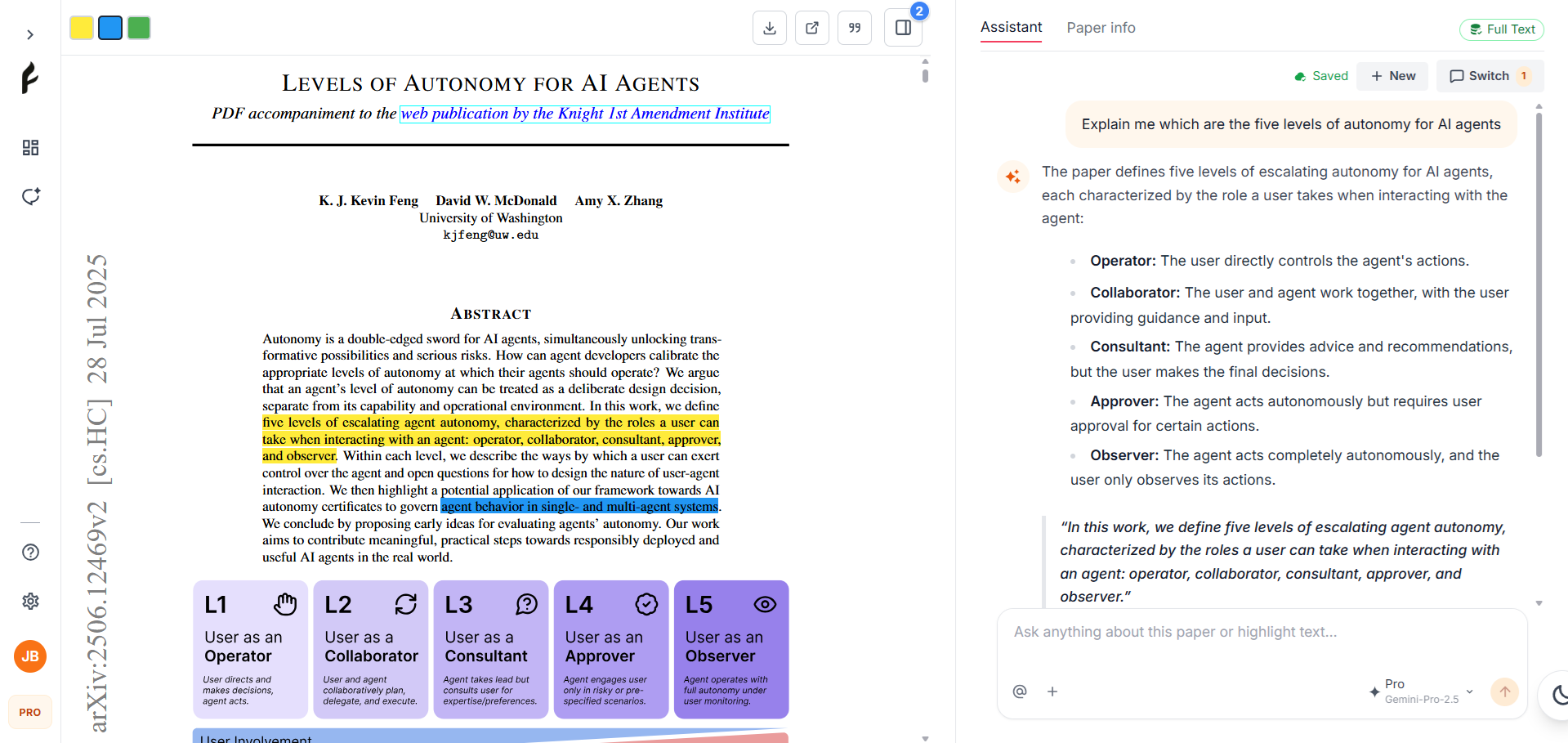 All your highlights are saved and can be exported for your writing later.
## Create a collection
Keep your research organized by creating collections:
Click **Collections** in the sidebar
Click the **New Collection** button
Enter a name like "Thesis Chapter 1" or "Machine Learning Papers"
Drag papers into your collection or use the "Add to Collection" button
Free tier users can create 2 collections. Upgrade to Pro for 20 collections.
## What's next?
You're all set! Here are some suggestions for what to explore next:
Learn about model selection and usage tracking
Master tags, search, citations, and library management
Discover all PDF viewer features and annotation tools
Unlock more papers, collections, and advanced AI models
## Helpful shortcuts
Speed up your workflow with these keyboard shortcuts:
| Action | Shortcut |
| ---------------- | -------------- |
| New chat | `Ctrl/Cmd + N` |
| Add paper | `Ctrl/Cmd + P` |
| Quick search | `Ctrl/Cmd + K` |
| Open settings | `Ctrl/Cmd + ,` |
| Toggle dark mode | `Ctrl/Cmd + D` |
[See all keyboard shortcuts →](/reference/keyboard-shortcuts)
## Common questions
The Free tier includes 5 papers total with a limit of 5 papers per month. Pro and Nova tiers give you 500 papers and 500/month.
Yes! You can upload PDFs on all tiers. File size limits are 10MB (Free), 50MB (Pro), and 100MB (Nova).
Each model type has a monthly message allocation based on your tier. Usage resets on the 1st of each month.
Yes! You can export citations in multiple formats including BibTeX, RIS, APA, MLA, Chicago, and more. Highlights can be exported as Markdown.
Absolutely. Your data is encrypted, secure, and private. Only you can access your papers, chats, and annotations. See our privacy policy for details.
## Need help?
If you run into any issues or have questions:
* 📧 Contact our support team at [support@ederspark.com](mailto:support@ederspark.com)
* 📚 Browse the [complete documentation](/)
* 💡 Check out [tips and best practices](/guides/tips-best-practices)
Welcome to Freiya! We're excited to help you streamline your research workflow.
All your highlights are saved and can be exported for your writing later.
## Create a collection
Keep your research organized by creating collections:
Click **Collections** in the sidebar
Click the **New Collection** button
Enter a name like "Thesis Chapter 1" or "Machine Learning Papers"
Drag papers into your collection or use the "Add to Collection" button
Free tier users can create 2 collections. Upgrade to Pro for 20 collections.
## What's next?
You're all set! Here are some suggestions for what to explore next:
Learn about model selection and usage tracking
Master tags, search, citations, and library management
Discover all PDF viewer features and annotation tools
Unlock more papers, collections, and advanced AI models
## Helpful shortcuts
Speed up your workflow with these keyboard shortcuts:
| Action | Shortcut |
| ---------------- | -------------- |
| New chat | `Ctrl/Cmd + N` |
| Add paper | `Ctrl/Cmd + P` |
| Quick search | `Ctrl/Cmd + K` |
| Open settings | `Ctrl/Cmd + ,` |
| Toggle dark mode | `Ctrl/Cmd + D` |
[See all keyboard shortcuts →](/reference/keyboard-shortcuts)
## Common questions
The Free tier includes 5 papers total with a limit of 5 papers per month. Pro and Nova tiers give you 500 papers and 500/month.
Yes! You can upload PDFs on all tiers. File size limits are 10MB (Free), 50MB (Pro), and 100MB (Nova).
Each model type has a monthly message allocation based on your tier. Usage resets on the 1st of each month.
Yes! You can export citations in multiple formats including BibTeX, RIS, APA, MLA, Chicago, and more. Highlights can be exported as Markdown.
Absolutely. Your data is encrypted, secure, and private. Only you can access your papers, chats, and annotations. See our privacy policy for details.
## Need help?
If you run into any issues or have questions:
* 📧 Contact our support team at [support@ederspark.com](mailto:support@ederspark.com)
* 📚 Browse the [complete documentation](/)
* 💡 Check out [tips and best practices](/guides/tips-best-practices)
Welcome to Freiya! We're excited to help you streamline your research workflow.