

Create your account
You can sign up for Freiya using email or Google OAuth, both are quick and secure.- Email signup
- Google OAuth
- Visit freiya.ederspark.com/auth/signup
- Enter your name, email, and password
- Click Sign Up
- Check your email for a verification code
- Enter the 5-digit code to verify your account

New accounts start on the Free tier with 5 papers and 2 collections. You can upgrade anytime.
Take a tour
After signing in, you’ll see the main Freiya interface: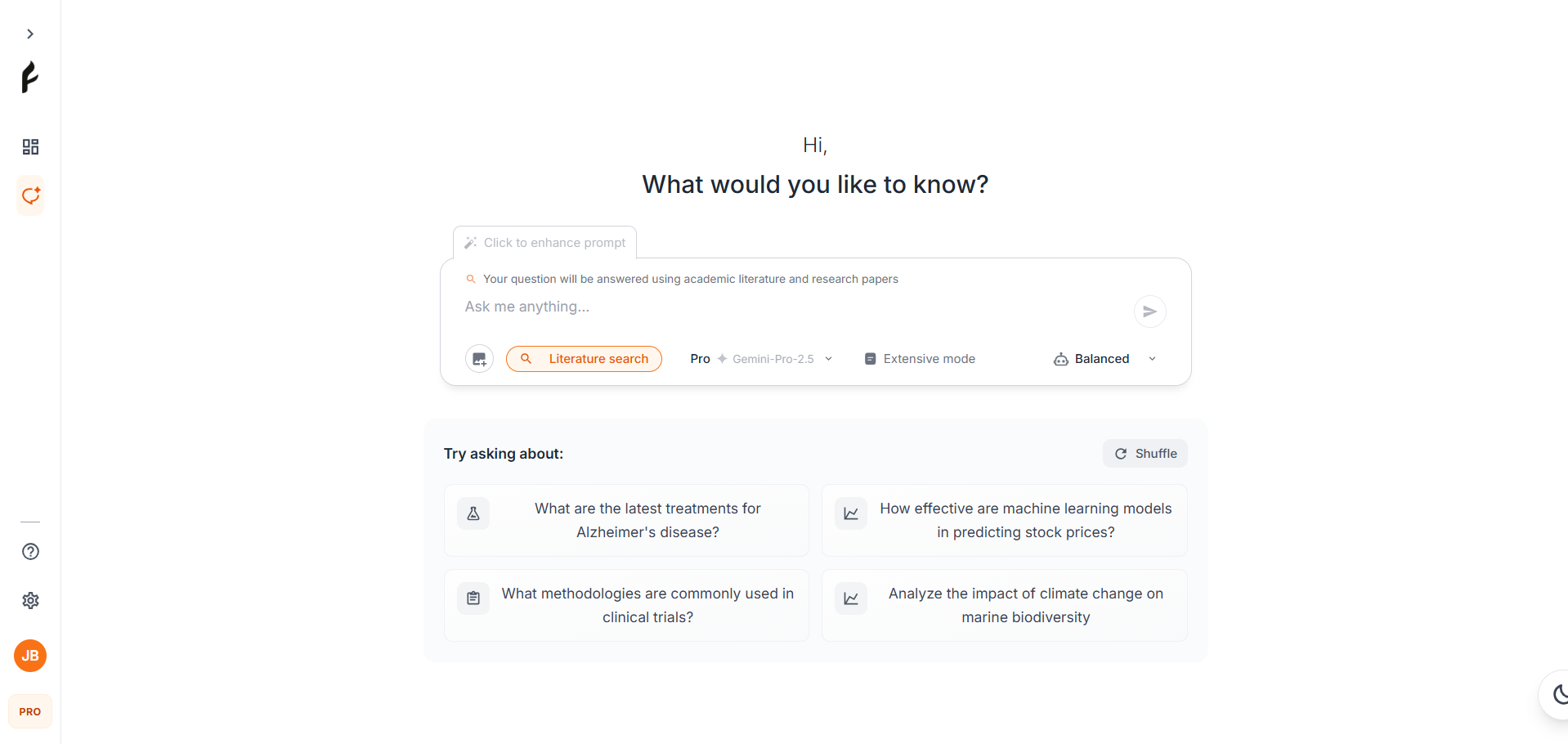
- Sidebar - Navigate between chats, papers, collections, and settings
- Main area - Your current view (chat, paper library, or PDF viewer)
- Top bar - Quick actions, search, and account menu
- Chat input - Start a conversation with AI (on chat page)
Add your first paper
Let’s add a research paper to your library. Freiya supports three methods:- Search by DOI
- Manual entry
- Upload PDF
The fastest way to add papers with complete metadata.
1
Click Add Paper
Find the Add Paper button in the top-right corner
2
Select DOI search
Choose Search by DOI from the options
3
Enter the DOI
Paste the DOI (e.g.,
10.1234/example.doi)4
Review and save
Freiya automatically fetches title, authors, abstract, and more. Click Save
Start an AI chat
Now let’s try Freiya’s AI chat feature:1
Navigate to chat
Click Chat in the sidebar or press
Ctrl/Cmd + N for a new chat2
Select a model
Choose an AI model from the dropdown (Free tier users see basic models)
3
Ask a question
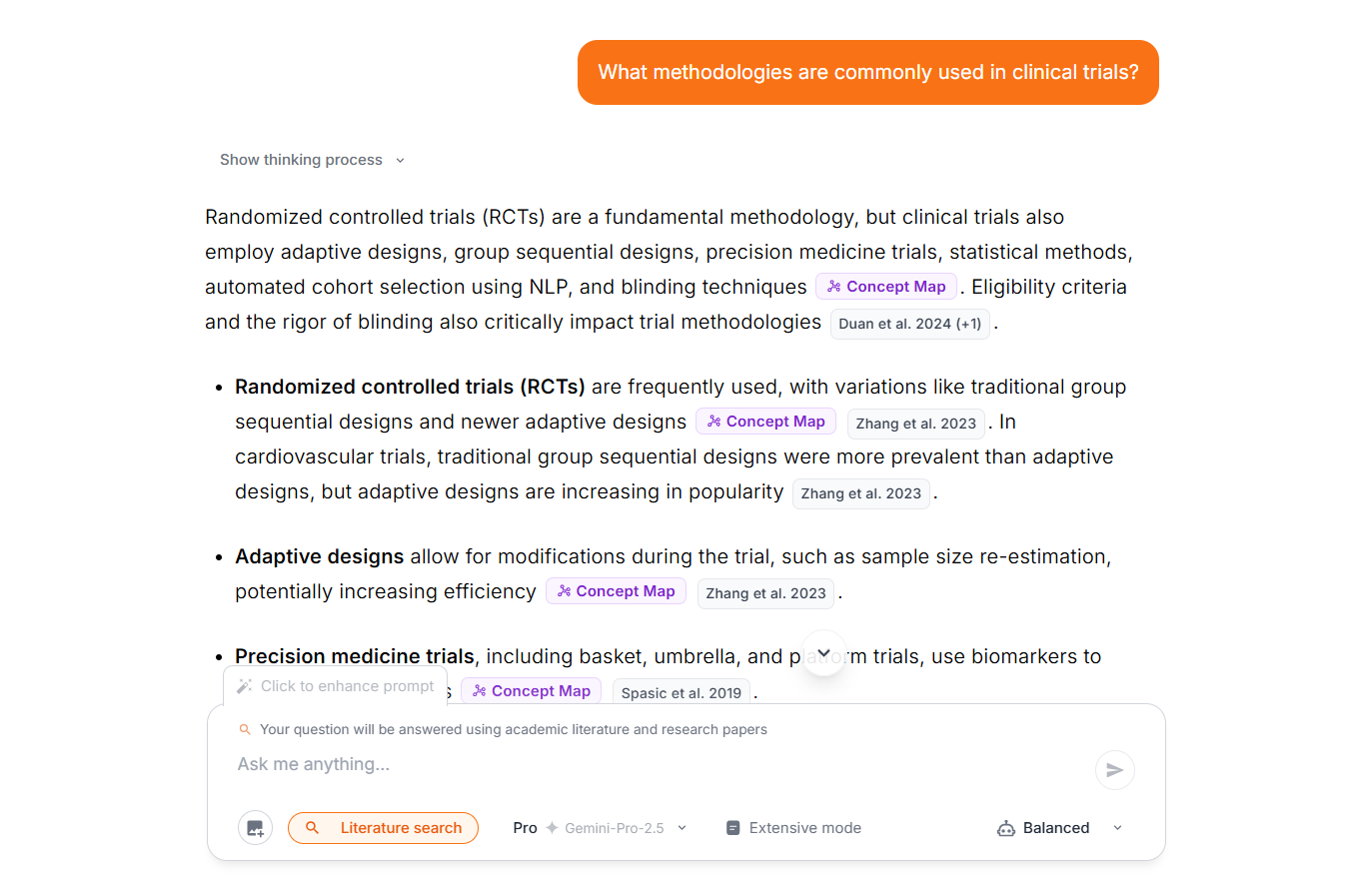
Type your question in the input box. Try asking about your paper!Example: “Analyze the impact of remote work on employee productivity and well-being”
4
Get AI response
Watch as the AI streams its response in real-time
Try the PDF viewer
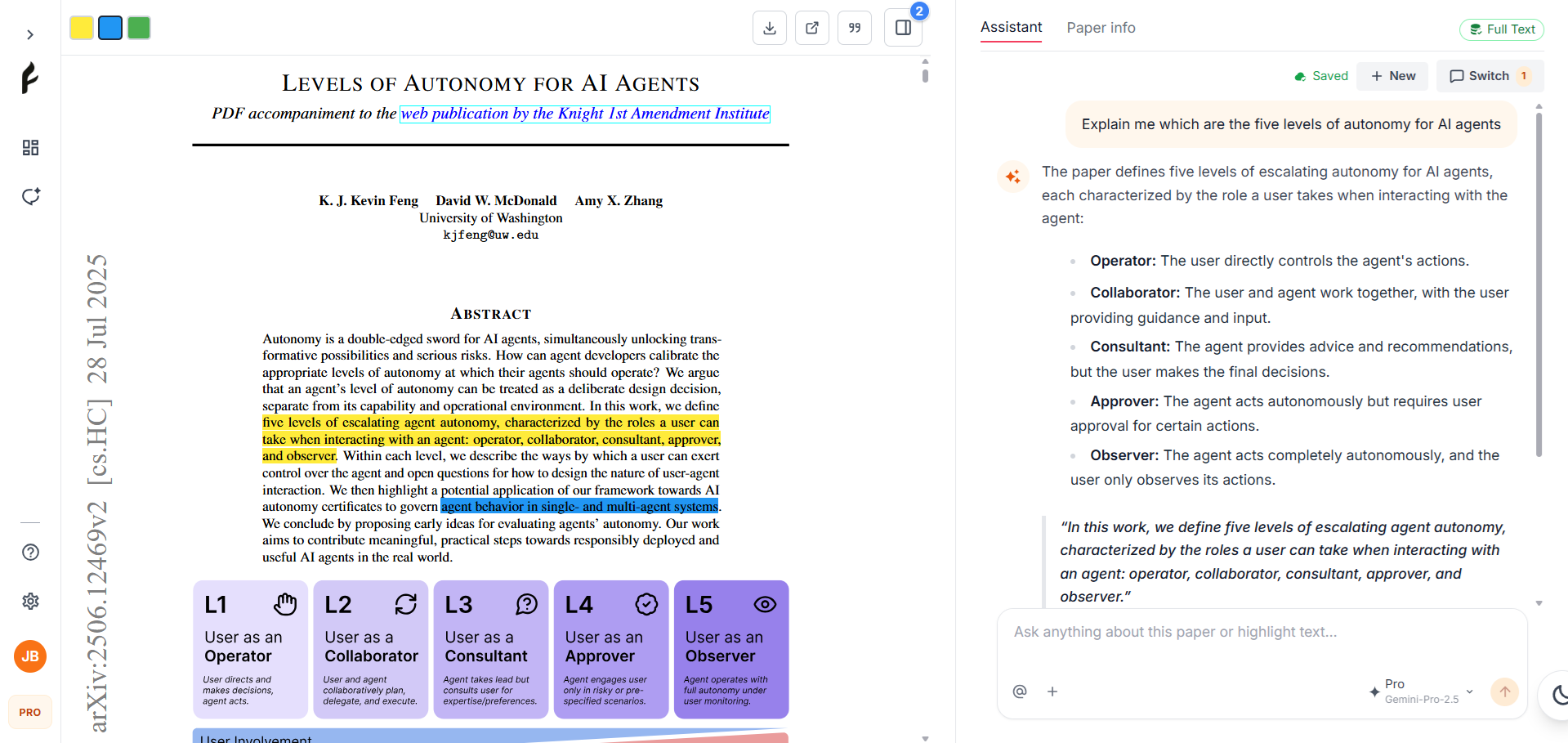
If your paper has a PDF, you can read and annotate it in Focus mode:1
Open a paper
Go to your paper library and click on a paper
2
Click View PDF
Click the View PDF or Focus button
3
Highlight text
Select any text to see the highlighting toolbar
4
Choose a color
Pick a highlight color (yellow, green, blue, red, purple, orange)
5
Add a comment
Optionally add a comment to your highlight
Create a collection
Keep your research organized by creating collections:1
Go to Collections
Click Collections in the sidebar
2
Click New Collection
Click the New Collection button
3
Name your collection
Enter a name like “Thesis Chapter 1” or “Machine Learning Papers”
4
Add papers
Drag papers into your collection or use the “Add to Collection” button
Free tier users can create 2 collections. Upgrade to Pro for 20 collections.
What’s next?
You’re all set! Here are some suggestions for what to explore next:Explore AI chat
Learn about model selection and usage tracking
Organize your library
Master tags, search, citations, and library management
Advanced annotations
Discover all PDF viewer features and annotation tools
Upgrade your plan
Unlock more papers, collections, and advanced AI models
Helpful shortcuts
Speed up your workflow with these keyboard shortcuts:
See all keyboard shortcuts →
Common questions
How many papers can I add on the free tier?
How many papers can I add on the free tier?
The Free tier includes 5 papers total with a limit of 5 papers per month. Pro and Nova tiers give you 500 papers and 500/month.
Can I upload my own PDFs?
Can I upload my own PDFs?
Yes! You can upload PDFs on all tiers. File size limits are 10MB (Free), 50MB (Pro), and 100MB (Nova).
How do AI usage limits work?
How do AI usage limits work?
Each model type has a monthly message allocation based on your tier. Usage resets on the 1st of each month.
Can I export my papers and citations?
Can I export my papers and citations?
Yes! You can export citations in multiple formats including BibTeX, RIS, APA, MLA, Chicago, and more. Highlights can be exported as Markdown.
Is my research data private?
Is my research data private?
Absolutely. Your data is encrypted, secure, and private. Only you can access your papers, chats, and annotations. See our privacy policy for details.
Need help?
If you run into any issues or have questions:- 📧 Contact our support team at support@ederspark.com
- 📚 Browse the complete documentation
- 💡 Check out tips and best practices